

#
Step 6: Generate Structural Documentation
#
Overview
OPTUM CS features a report generator. In the generated report all inputs and results are presented in a neat and organized way. The report can be used directly as a part of the structural documentation.
#
Properties and outline
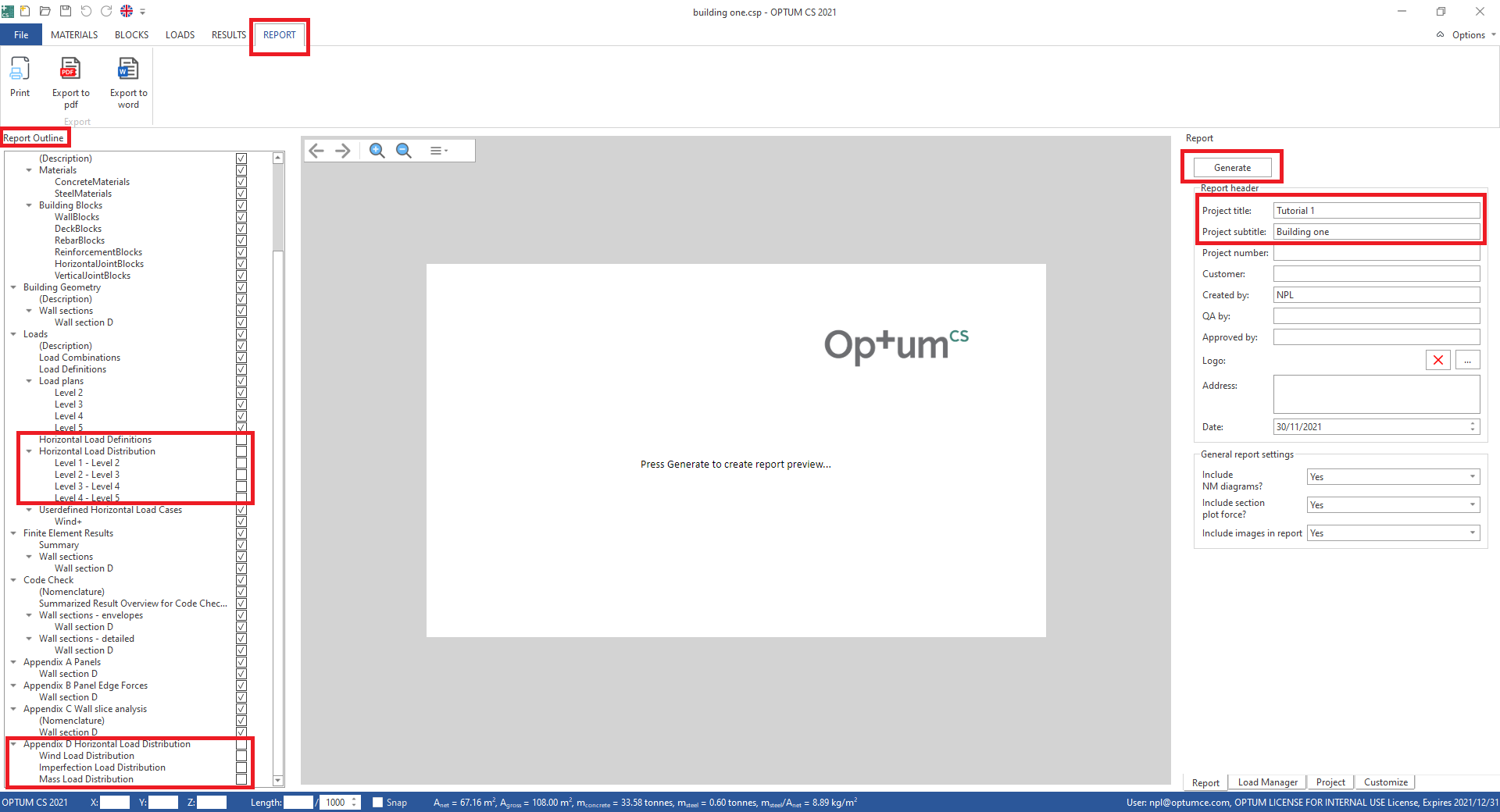
Edit report properties and generate report:
- In the REPORT tab in the ribbon, locate the Report pane on right hand side and add project title, subtitle and other relevant information.
- In the Report Outline on left hand side, remove the checkmark next to the sections named "Horizontal Load Definitions", "Horizontal Load Distribution" and "Appendix D Horizontal Load Distribution". These are not relevant when defining horizontal loads manually.
- In the report pane click the Generate button.
#
Content
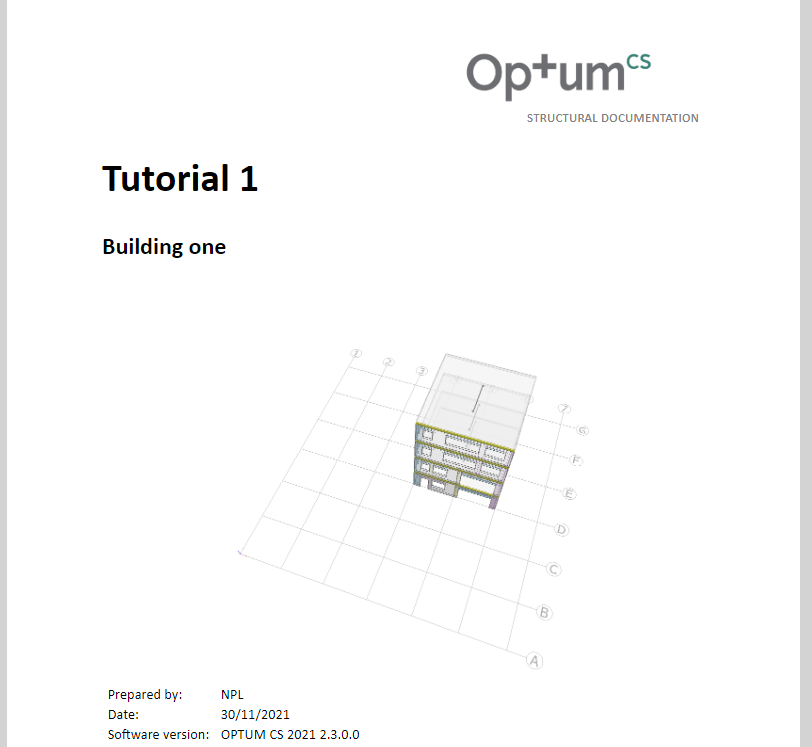
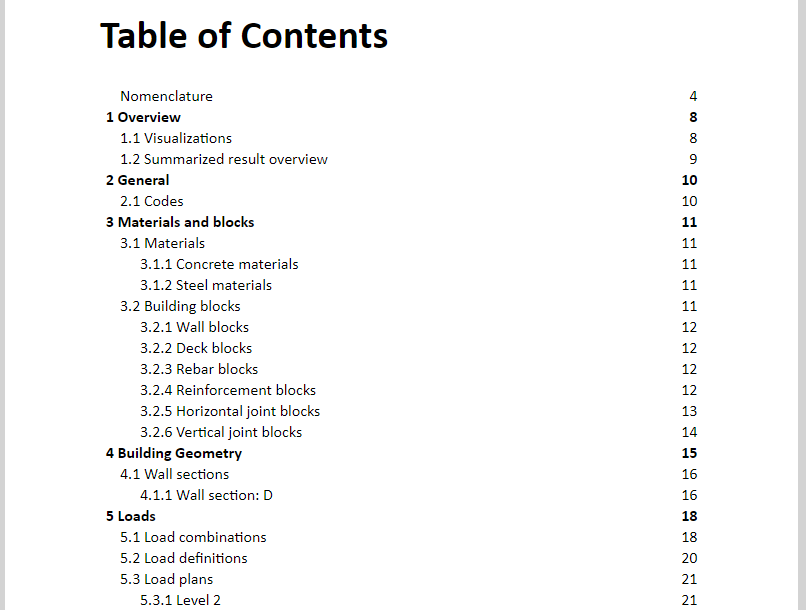
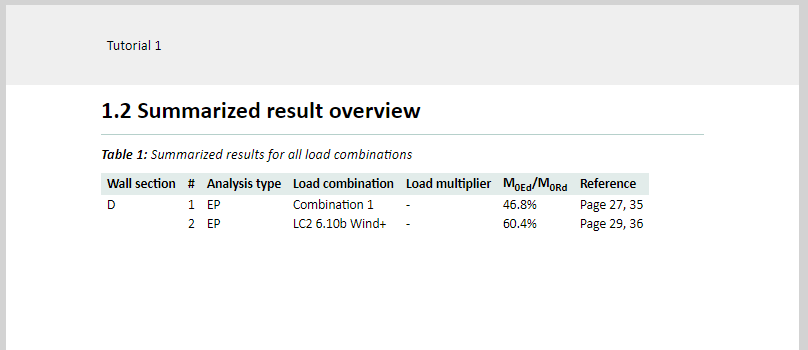
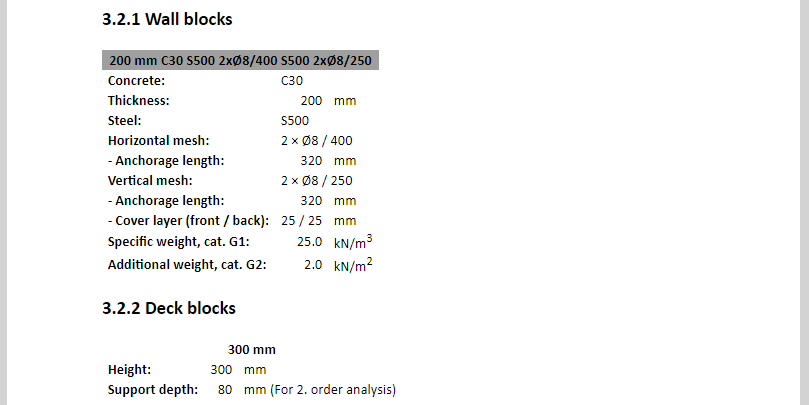
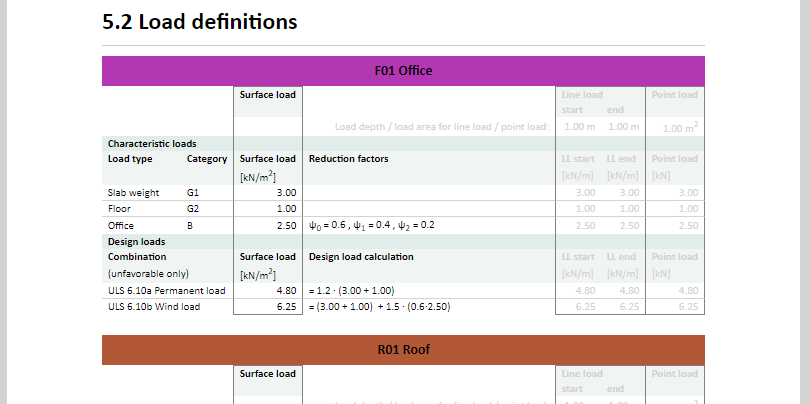
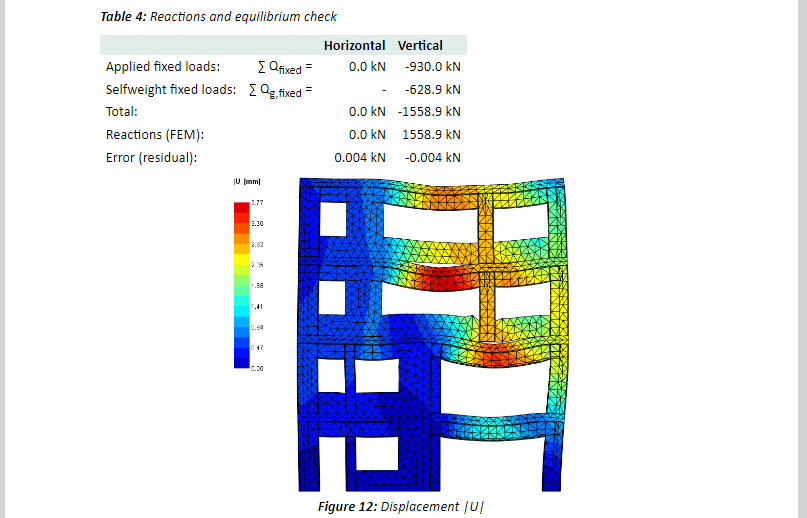
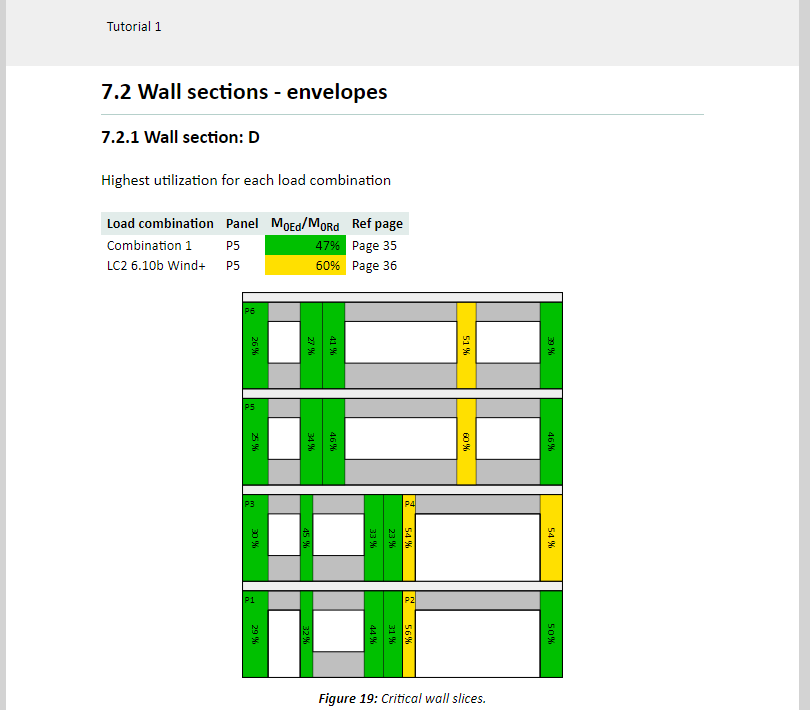
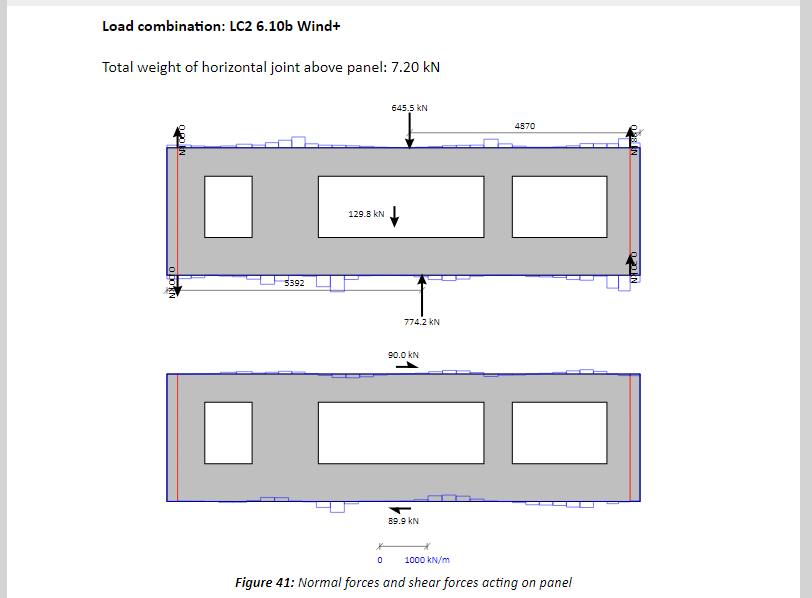
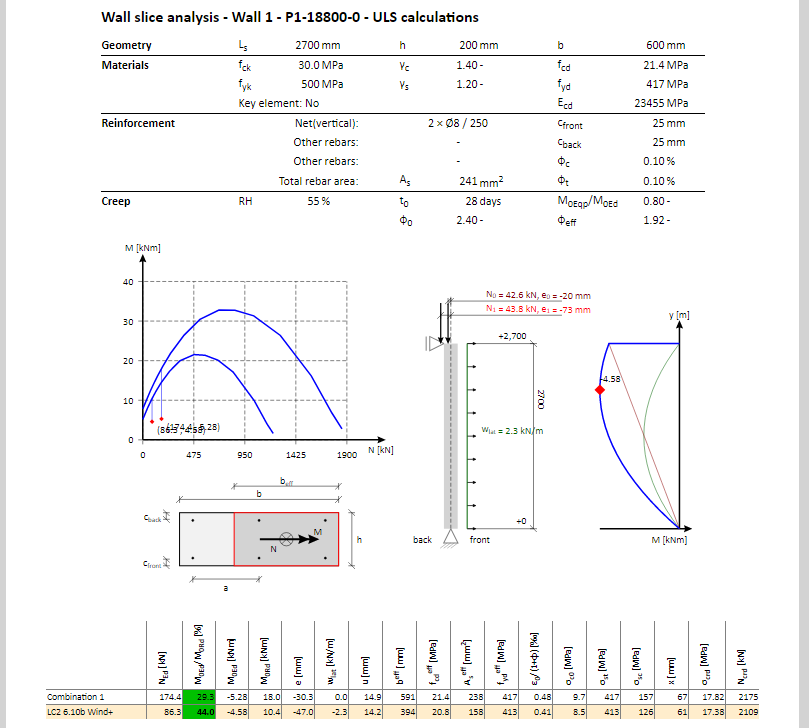
The report consists of a front page, table of contents, a short overview, chapters describing the model geometry, properties and loads, a chapter presenting the results of the finite element calculation, a chapter presenting the results of the code check and four appendices that include details related to panel geometry, forces acting on panels, wall calculations and distribution of horizontal loads.
- Navigate to different sections by using the Report Outline, Table of Contents and the links in the report.
- Export the report by clicking the Export to pdf button in the ribbon.
Previews of different sections are presented below.
Congratulations! You have completed Tutorial 1.