#
Step 2: Reinforcement
#
Reinforcement types
OPTUM CS has three types of reinforcement: Net reinforcement, reinforcement (blocks) and discrete rebars (blocks).
#
Net reinforcement
Edit the net reinforcement properties:
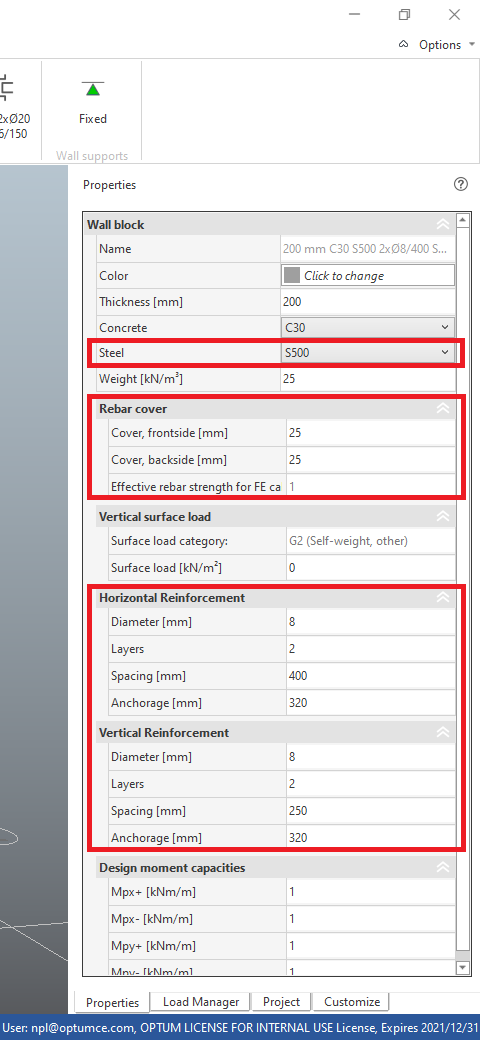
- Click wall block "200 mm C30 S550 2xØ6/150" in the BLOCKS tab (the wall block that was used when creating the wall).
- Change Steel to S500. Change Cover, frontside [mm] and Cover, backside [mm] to 25.
- Change Horizontal Reinforcement to 2xØ8/400 and Vertical Reinforcement to 2xØ8/250, by changing Diameter [mm], Layers and Spacing [mm].
- Also change Anchorage [mm] to 320 for both directions. The name of the wall block automatically updates.
These changes will apply to all walls that use this block.
#
Reinforcement
- Choose the reinforcement block named "S550 2xØ12 S550 2xØ6/150" from the BLOCKS tab in the ribbon.
- In the reinforcement block properties change the Diameter [mm] of the Beam Top / Column Right Rebars to 12.
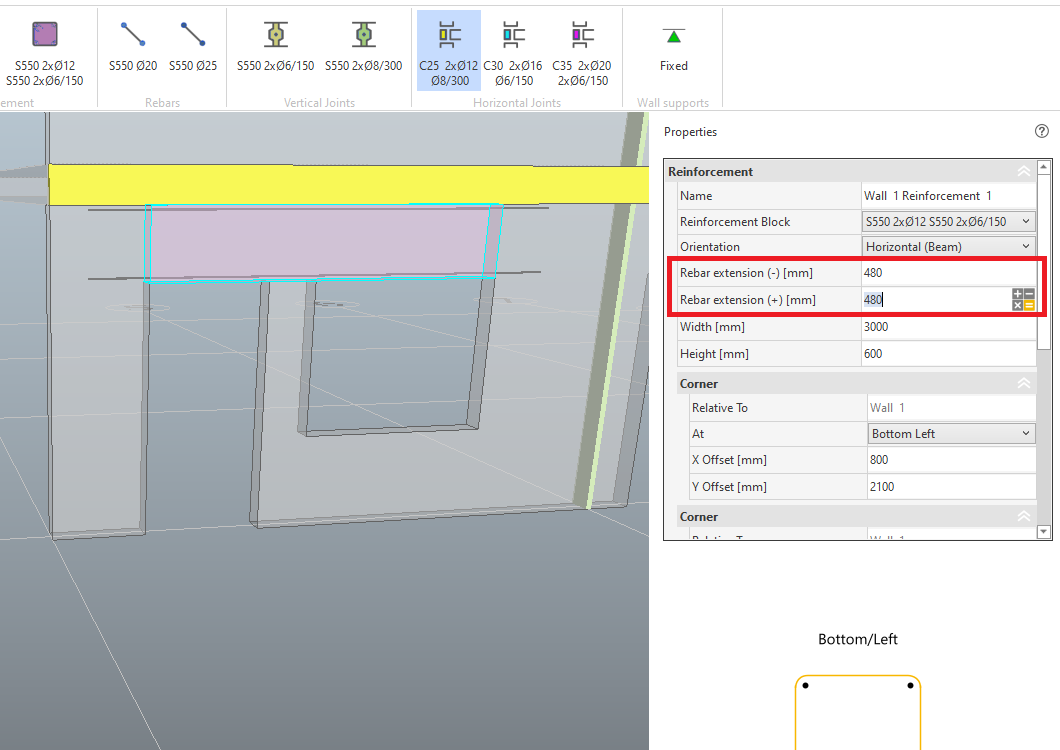
Create beam reinforcement above the door and window hole:
- Click the top left corner of the door hole and click a second point above the top right corner of the window. The cursor will automatically snap to the point in the bottom of the horizontal joint.

- Press ESC to leave the tool.
- Select the reinforcement geometry that was just created.
- Change Rebar extension (-) [mm] and Rebar extension (+) [mm] to 480.
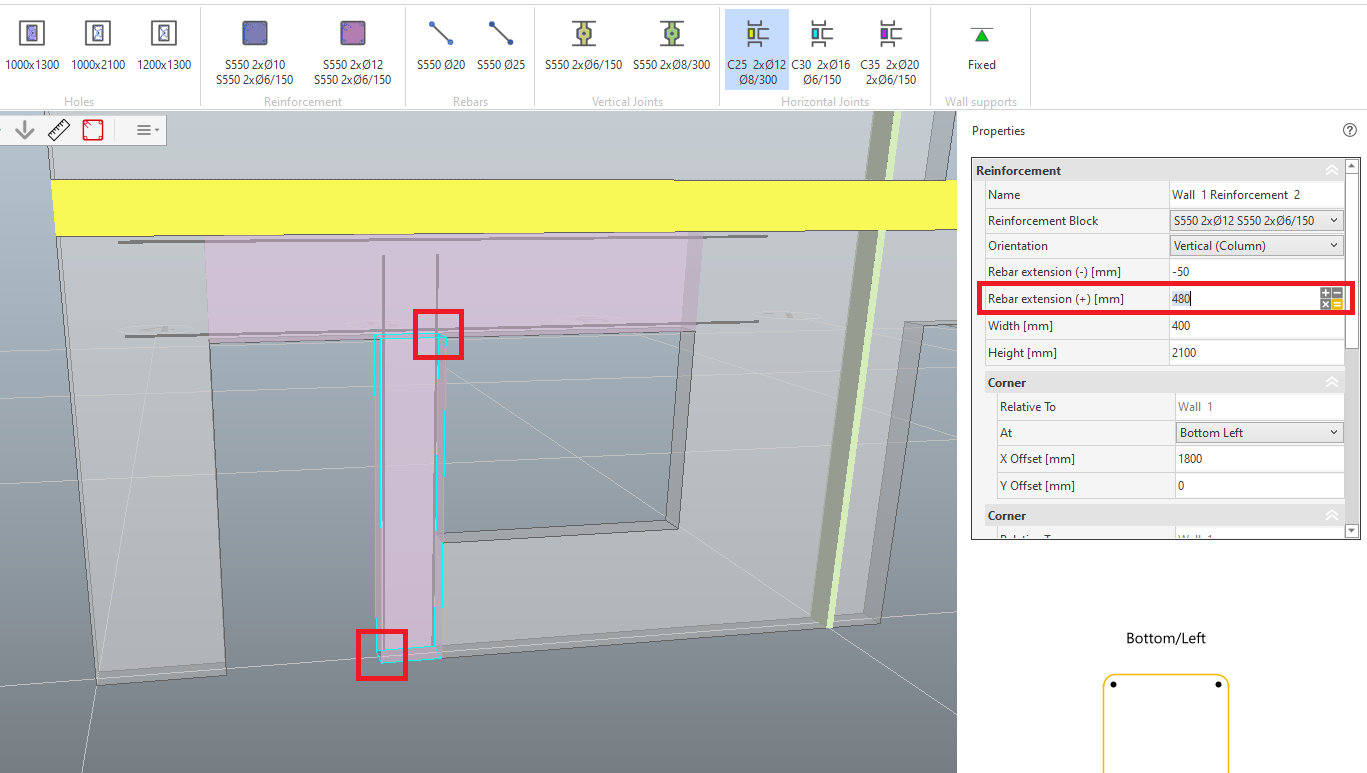
- Choose the reinforcement block again and add reinforcement between the door and the window by clicking two corner points.
- Change Rebar extension (+) [mm] to 480 in the reinforcement properties.
Assign reinforcement automatically:
- Click the reinforcement button in the top left corner of the canvas.
- In the menu, change Beams and Columns to Minimum (creates blocks) and click OK.
New reinforcement blocks are created and reinforcement geometries inserted if missing.
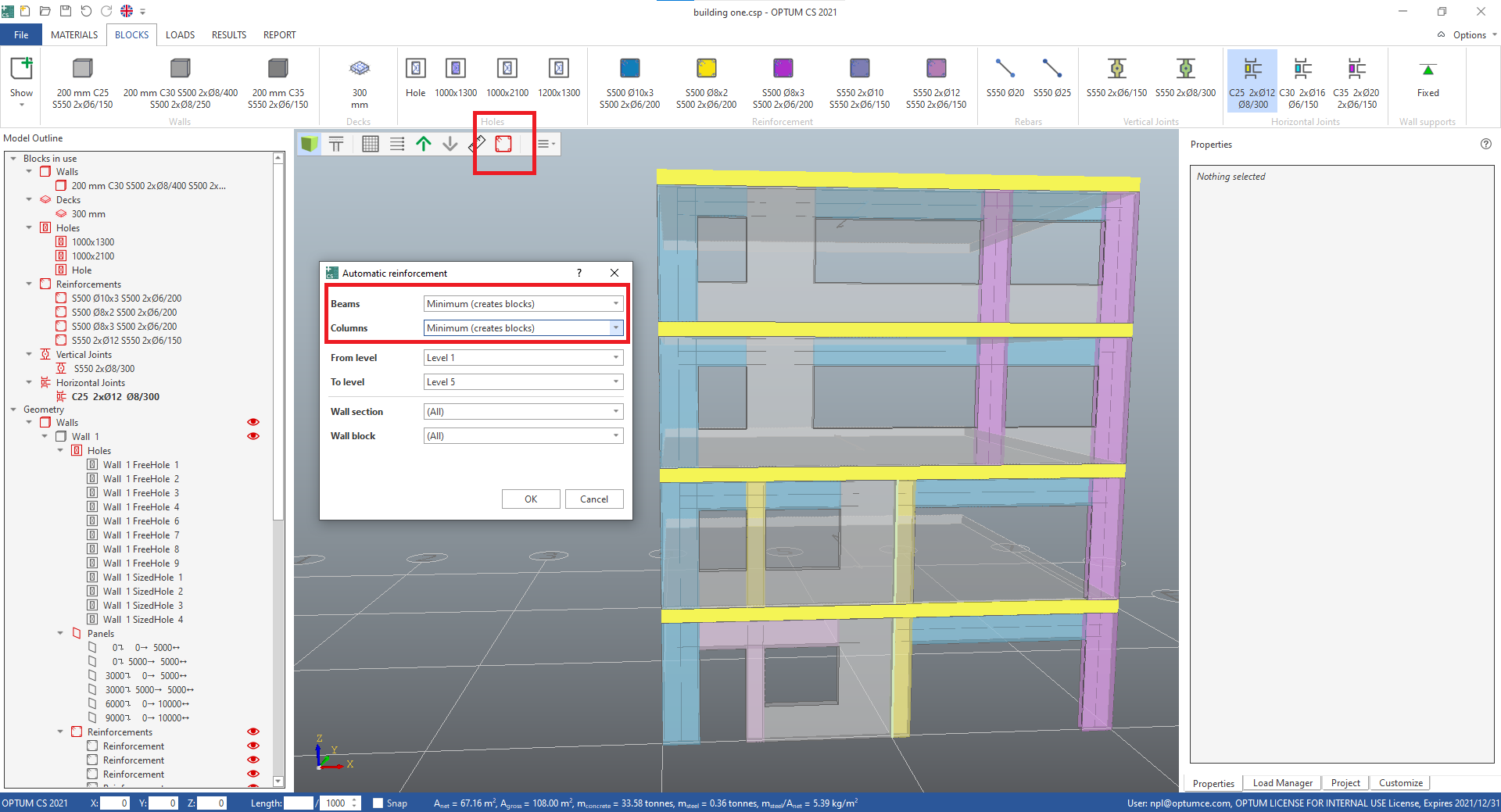
The reinforcement replace the net reinforcement in both directions.
#
Discrete rebars
Add vertical stringers:
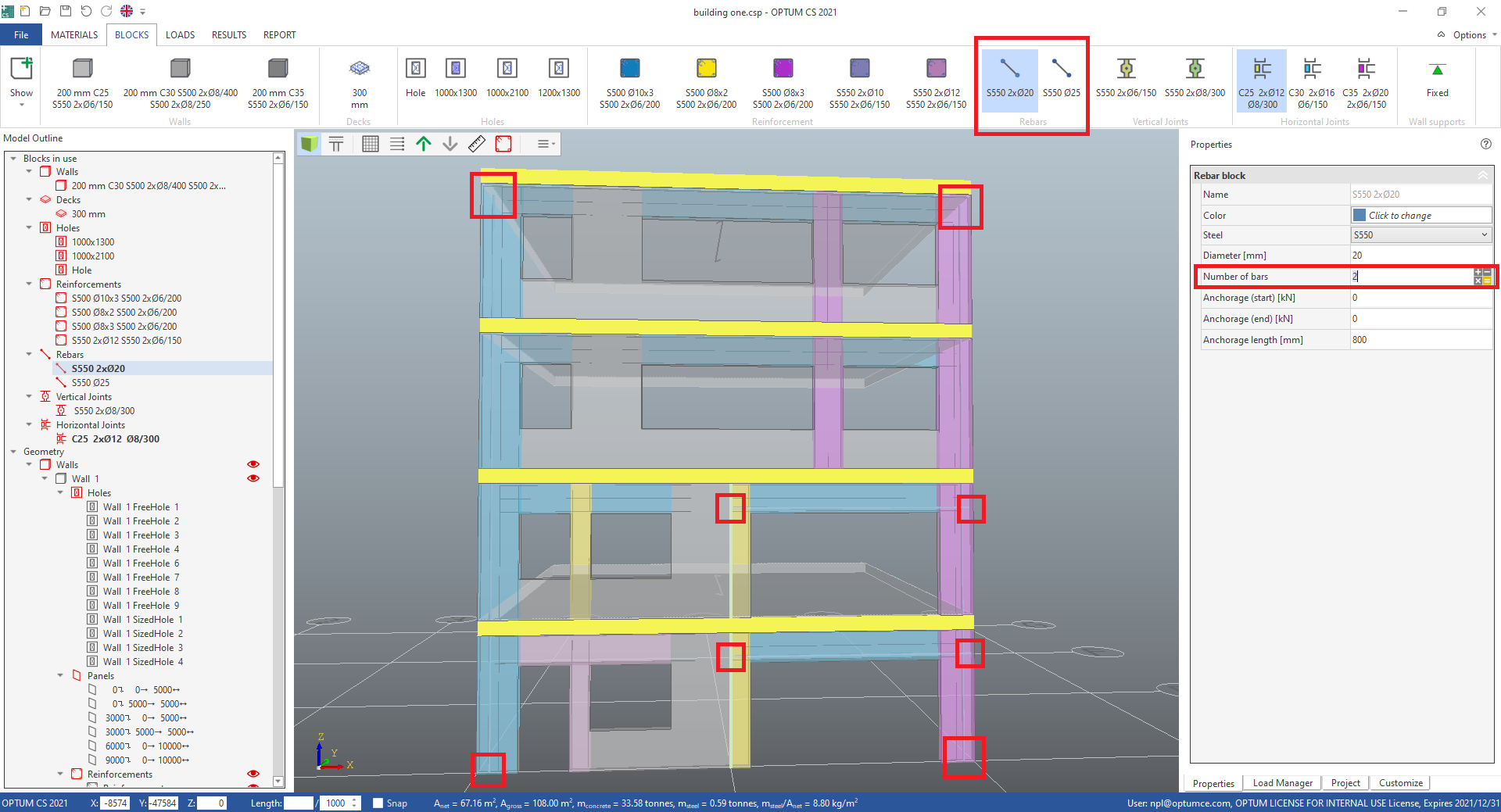
- Choose the rebar block named "S550 Ø25" from the BLOCKS tab in the ribbon.
- Create a vertical stringer in each side of the wall elevation by clicking two points; first a point at the bottom of the wall, then a point just below the top of the top concrete element.
Add rebars to beams:
- Choose the rebar block named "S550 Ø20" from the BLOCKS tab in the ribbon.
- Change Number of bars to 2.
- Create rebars in the bottom of the two long beams in level 1 and 2 by clicking start and end point.
- Adjust the position of the discrete rebars by changing X Offset [mm] and Y Offset [mm] for Start and End in the properties for the rebar geometries.